
Workflow tutorial · one visual system, deliberate variations
Create matching image assets from one layered design
A square announcement, a wide thumbnail and a transparent overlay can look related without sharing the same composition. Decide what stays consistent, keep an editable master, and adapt each version for its actual placement.
Example status: the asset plan is a manual exercise, and the genuine image downloads demonstrate formats. Finished square, wide and transparent campaign layouts are not included.
1. Define the shared idea and the different jobs
For our original planning example, a fictional “Shape Notes” announcement uses a short headline, simple geometric shapes and one consistent visual hierarchy. The brief specifies a readable headline and a recognizable focal point, not a demand to fit identical artwork into every rectangle.
Use the table as a worksheet. The dimensions below are example design targets, not current platform requirements or already-generated PixelOkay exports.
| Deliverable | Example target | Keep consistent | Adapt manually |
|---|---|---|---|
| Square announcement | 1080 × 1080 | Headline, palette and focal subject | Stack the message and subject so both read in a square. |
| Wide thumbnail | 1280 × 720 | Headline wording and visual identity | Reposition the subject; shorten supporting text. |
| Transparent overlay | Match its intended placement | The mark or title treatment | Remove unwanted background and leave useful clear space. |
Before editing, write down where each asset will appear, whether transparency is needed, and whether the receiver expects an editable project or a flattened image. This prevents format conversion from being mistaken for design adaptation.
2. Build and save an editable master
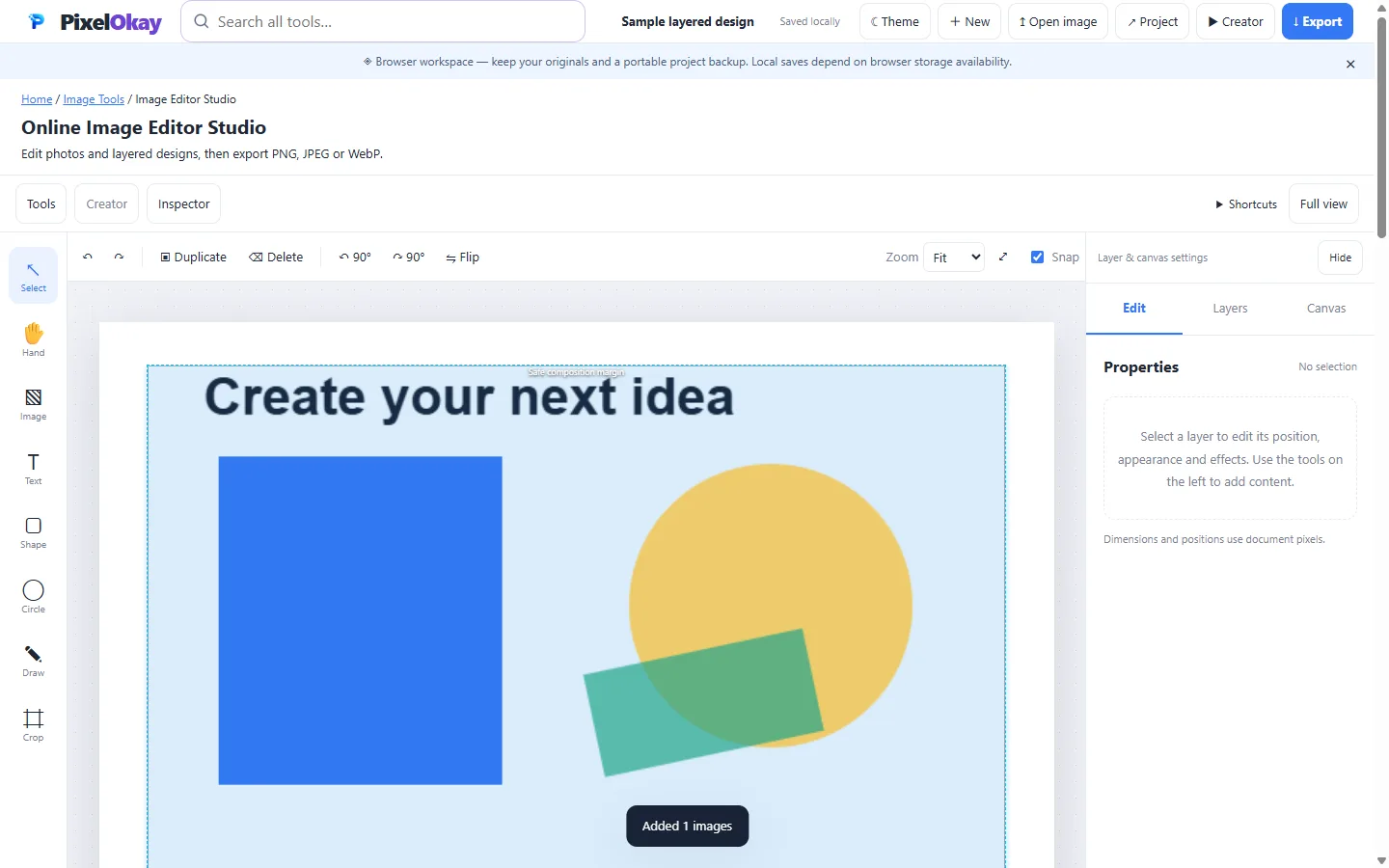
- Open Image Editor Studio. Set the canvas for the first intended placement rather than starting with the largest dimensions available.
- Import a compatible image, or begin with supported shapes and text. Keep the headline and focal subject on separate layers so they can move independently.
- Use the available layer and text controls to establish the hierarchy. Keep enough contrast and space for the message to remain readable when displayed smaller.
- Save a project and download the available portable editable backup. Retain the original image inputs separately.
Starting from a flattened practice PNG is also useful, but it does not restore the layers used to create it. Add new text or shapes on separate layers; do not assume text already baked into a PNG will become editable.
3. Make each variation intentionally
Keep a saved copy of the master before changing the working version. When the destination has another shape, review the canvas size and reposition layers using the existing controls. If you need to return to a previous version, reopen the corresponding saved backup.
Square announcement
Give the main subject enough room and place the headline where it remains legible. A balanced square often needs a different vertical arrangement from a wide layout. Inspect the corners and lower edge before exporting.
Wide thumbnail
Rebalance the headline and subject for the wider frame. For a simpler dedicated 1280 × 720 workflow, use Thumbnail Maker. Treat it as a separate composition, not an automatic export of the layered master.
Transparent overlay
Choose a transparent canvas/output where supported and inspect which elements remain visible. Transparent pixels in the result depend on both the composition and the selected format. Keep a separate preview on a light and a dark background.
Resize Image changes dimensions; Crop Image discards surrounding content. Neither automatically decides where your headline should move. If a source photograph needs subject separation, Background Remover is a separate step with its own optional model downloads and edge-quality limitations.
4. Choose the format for the job, not just the filename
| Format | Useful when | Review before sharing |
|---|---|---|
| PNG | You need transparency or a lossless flattened image. | Check alpha edges and file size. A PNG is not an editable layer stack. |
| JPEG | The destination accepts a photographic image with a solid background. | No transparency; the Image Editor export uses a white matte for transparent regions. Inspect text and edges for lossy artifacts. |
| WebP | The receiving application supports it and the selected export suits the image. | Check compatibility and transparency in the actual destination. Browser encoder availability can vary. |
| Editable project backup | You need to move text, shapes or images independently later. | Keep the correct version and its included source assets. It is not the same as sending a flattened image. |
Exporting at a larger scale cannot recreate source detail that was absent from an imported photo. Changes to canvas size, layers, output scale and output format have different effects; review dimensions and composition after each change.
5. Review the collection as a set
- Check identity. Do the headline, palette and focal subject feel related without forcing identical placement?
- Check readability. View each image near the size it will actually appear. Remove supporting text that no longer helps.
- Check transparency. Inspect the PNG or supported WebP on both a light and a dark surface. Do not judge it only against a checkerboard.
- Check dimensions and files. Confirm the exported pixel size, format and filename. Give each version a name such as
shape-notes-square-v1.pngrather than overwriting every output as “final”. - Keep the editable source. Store the correct project backup and original inputs with the exported set. Browser storage can be cleared or become unavailable.
If you need a review overview, Contact Sheet Maker can combine the exported images into thumbnail pages. That overview is not a replacement for the individual assets or the editable project.
Real format samples and an original asset worksheet
The three downloads below are genuine PNG, JPEG and WebP outputs from the same small, original geometric fixture in earlier local Image Editor Studio work. They demonstrate the file-format/alpha distinction with identical source artwork. They are not a finished marketing campaign, differently sized compositions or exports of the workspace screenshot above.
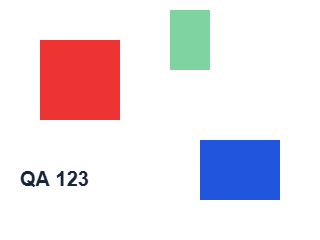
- Download the genuine PNG format sample
- Download the genuine JPEG format sample—compare its matte with the PNG.
- Download the genuine WebP format sample
- Download the original Shape Notes asset-plan worksheet—planning targets, not produced files.
- Download the materials and provenance notes
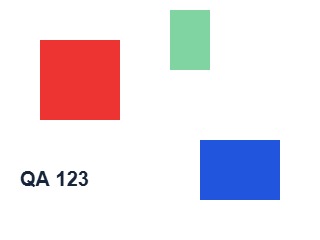
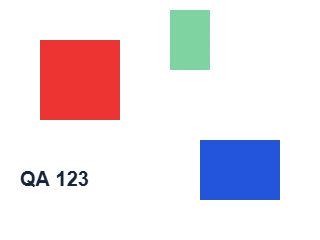
You can import the PNG as a flattened practice input and add separate layers. No reconstructed or invented editor project is provided. To obtain an editable project for your own variations, build them in the editor and use its supported backup action.
Common questions
Does PixelOkay automatically repurpose one design into every size?
No such workflow is promised here. Plan and adapt each composition manually, then review its export.
Will importing the PNG recover editable text?
No. It imports pixels. New text you add can be a separate editable layer, but text already baked into the image is not recovered as a text object.
Are the three sample formats three different layouts?
No. They use the same original fixture and demonstrate output-format behavior. The square and wide layout worksheet is a separate manual exercise.
Build your own coordinated set
Use the dedicated thumbnail canvas · Create a review overview · Compare sharing-size settings