
Workflow tutorial · plan → record → edit → review
Turn a screen recording into a focused product demo
A useful demo answers one question: what can the viewer do after watching? Start with that outcome, record the action using a separate screen recorder, then assemble the explanation in Video Editor Studio.
Example status: this tutorial includes an original storyboard and genuine earlier timing-practice files. A completed screen-recorded product-demo export is not included.
1. Write the outcome before recording the interface
Choose one small task with an observable result. “Create an overview of six photos” is easier to demonstrate than a tour of every image tool. List what the viewer needs to see, what can be cut, and the final action you want them to take.
Our original storyboard uses PixelOkay’s Contact Sheet Maker as the subject. It is a plan you can record yourself, not a claim that a finished 30-second recording is included.
| Target time | Story beat | What to capture | Suggested title |
|---|---|---|---|
| 0–4 seconds | Show the problem | A set of your own photos needing one overview. | See the whole collection |
| 4–10 seconds | Add the input | Choose six permitted photos in Contact Sheet Maker. | Add your photos |
| 10–18 seconds | Make one meaningful choice | Set two columns and three rows; choose Contain. | Keep the whole image visible |
| 18–25 seconds | Show the result | Generate and inspect the contact-sheet preview. | Review the layout |
| 25–30 seconds | Give a next step | Show the available image download action. | Download your overview |
These are editorial timing targets. If a real action takes longer, capture it completely and edit around the waiting period rather than pretending it was instantaneous. Do not speed through a result the viewer needs to inspect.
2. Capture the source using a separate recorder
Use a screen recorder available on your device. This tutorial does not depend on PixelOkay having a built-in screen recorder. Choose a capture area that keeps the controls readable, close unrelated material, and avoid recording passwords, personal notifications or private filenames.
- Prepare the example files and put the tool in its starting state.
- Capture each action and allow a short pause before and after it. Separate takes are easier to replace than one long tour.
- Keep the original recordings. Check that each file plays and that the important text is legible before editing.
- If you need narration, record it separately with a tool you already use. Import the resulting audio file only if it decodes in your browser.
3. Assemble the story rather than preserving every recorded second
- Open Video Editor Studio and choose Import media. Check each clip’s preview.
- Use Canvas to choose the project shape. For a wide interface demonstration, start with a landscape layout and verify that small controls remain readable.
- Arrange clips in story order on the timeline. Keep the problem, action and result easy to follow; a chronological recording is not automatically a good explanation.
- Select a clip to trim its boundaries. To remove a pause inside a take, place the playhead at a cut, select the clip and use S to split. Review the resulting sequence and use Undo if the cut removes needed context.
- If you imported narration, position it on the audio timeline and listen alongside the picture. Do not assume moving a clip preserves the intended synchronization.
For a single start/end cut, Trim Video may be simpler. Use the studio when several takes, explanatory titles or separate audio need to work together.
4. Use explanatory titles and prepared captions deliberately
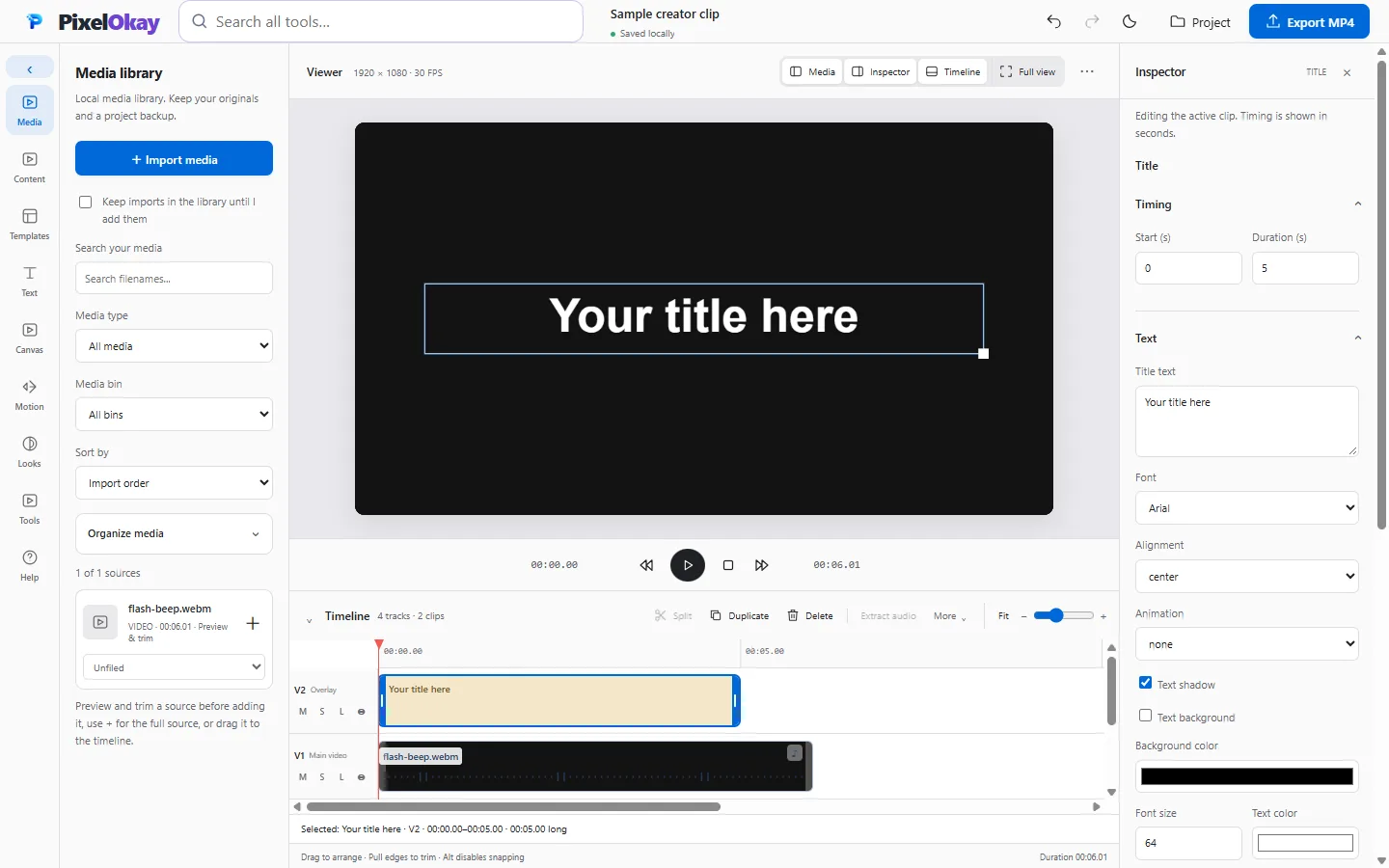
Open Text to add a title. Select it on the timeline, edit its text and timing, and inspect the picture beneath it. A short instruction such as “Choose Contain” can explain a decision; repeating every visible button label adds clutter.
Spoken narration, editorial titles and captions serve different purposes. If you need captions, prepare the words and timings yourself. This workflow does not rely on automatic speech transcription. For a separate SRT workflow, Add Subtitles accepts prepared SRT and offers permanent burn-in or an embedded MP4 subtitle track.
- Permanent captions become part of the picture; they cannot be switched off by the viewer.
- Embedded captions depend on the receiving player and its settings.
- The focused burn-in tool has cue, line and output-width limits. Read those limits before sending a longer edit into it.
- Always inspect timings in the final receiving player; a preview is not a guarantee of universal playback.
5. Export a review copy and keep the editable work separately
Choose the top-bar Export MP4 action, select an available resolution and confirm the export. Keep the tab visible. Browser recording/encoding and optional conversion paths differ, so neither a selected resolution nor a short source guarantees success on every device.
Open the downloaded file and check these points before sharing:
- The first frame explains the task, and the last frame gives a clear next step.
- Each important control and result is readable at the intended display size.
- Titles appear at the intended times without hiding the subject.
- Picture, narration and any retained source audio are synchronized.
- The export plays from beginning to end in the destination player.
Use Project → Save portable backup for the supported editable project and referenced media. An MP4 is a flattened viewing copy, not the timeline. Keep original recordings as well; local browser storage is not guaranteed retention.
Original materials: practice files and an honest boundary
The storyboard above is original tutorial material. The small source/export pair below comes from earlier local PixelOkay work: an original synthetic clip with timing flashes and tones, and its actual MP4 export. It lets you practice importing, exporting and inspecting timing without using private footage.
It is not a screen recording, narrated product demo or completed version of the 30-second storyboard. No editor project download is supplied. Create your own portable backup after building your edit.
- Download the synthetic WebM practice source
- Download the genuine earlier MP4 export
- Download the original 30-second storyboard worksheet
- Download manually authored timing-marker SRT for the six-second practice clip—not speech transcription and not included in the supplied MP4.
- Download the materials and provenance notes
Common questions
Does PixelOkay record the screen for this tutorial?
No built-in screen recording is assumed. Capture the source with a separate recorder, then import the resulting file.
Will the editor write or transcribe my script automatically?
This guide uses a manually written storyboard, titles and prepared captions. It makes no automatic transcription or script-generation promise.
Should I create a separate file for every target size?
Review each intended composition. Small interface text can become unreadable when a wide recording is cropped or shown on a narrow screen. Keep the original edit and make deliberate changes rather than assuming one export fits every placement.
Continue the workflow
Open Video Editor Studio · Add prepared SRT captions · Compare MP4 compression settings · Create a separate thumbnail