Extract document text
Read the existing PDF text layer. Image-only scans require OCR.
 PixelOkay
Organize PDF pages, add text and drawn annotations, merge images and documents, extract text or run OCR, and export PDFs in one browser workspace. Annotations add visible overlays; they do not replace the original PDF text or provide secure redaction.
Drag PDFs or images here, or choose files from your device.
Select cards to edit multiple pages. Drag and drop to reorder.
Focus the page: Tab selects the next annotation; Shift+Tab selects the previous one. Arrow keys move a selected mark by 1 pixel; Shift moves by 10. Delete removes it. Escape cancels a drag or clears selection. Page Up/Down changes pages. V selects, T adds text, H highlights, P draws. Ctrl/⌘ Z undoes; Ctrl/⌘ Shift Z redoes. F toggles full view outside text fields.
Choose a page, then draw, highlight, add text, or reshape annotations directly on the page.
Export selected pages, extract embedded text, or create a high-resolution page image.
Read the existing PDF text layer. Image-only scans require OCR.
Render the current reader page and its annotations to a crisp PNG image.
Export your selected pages as a new PDF file.
Recognize scanned pages using Tesseract.js. OCR models download on first use; no document upload.
Add JPG, PNG and WebP images to your document as new pages.
Update export filename and PDF metadata.
The fields above set metadata on the exported PDF. Page content is copied from your sources; annotations are added as a flattened image layer.
Organize, annotate and export — all within your browser.
Use PDF Studio to assemble a document, rotate or reorder pages, and add visible notes, highlights or drawing. The original PDF page content is retained. Added marks are flattened into an annotation image layer in the exported PDF; they do not replace or edit the original text.
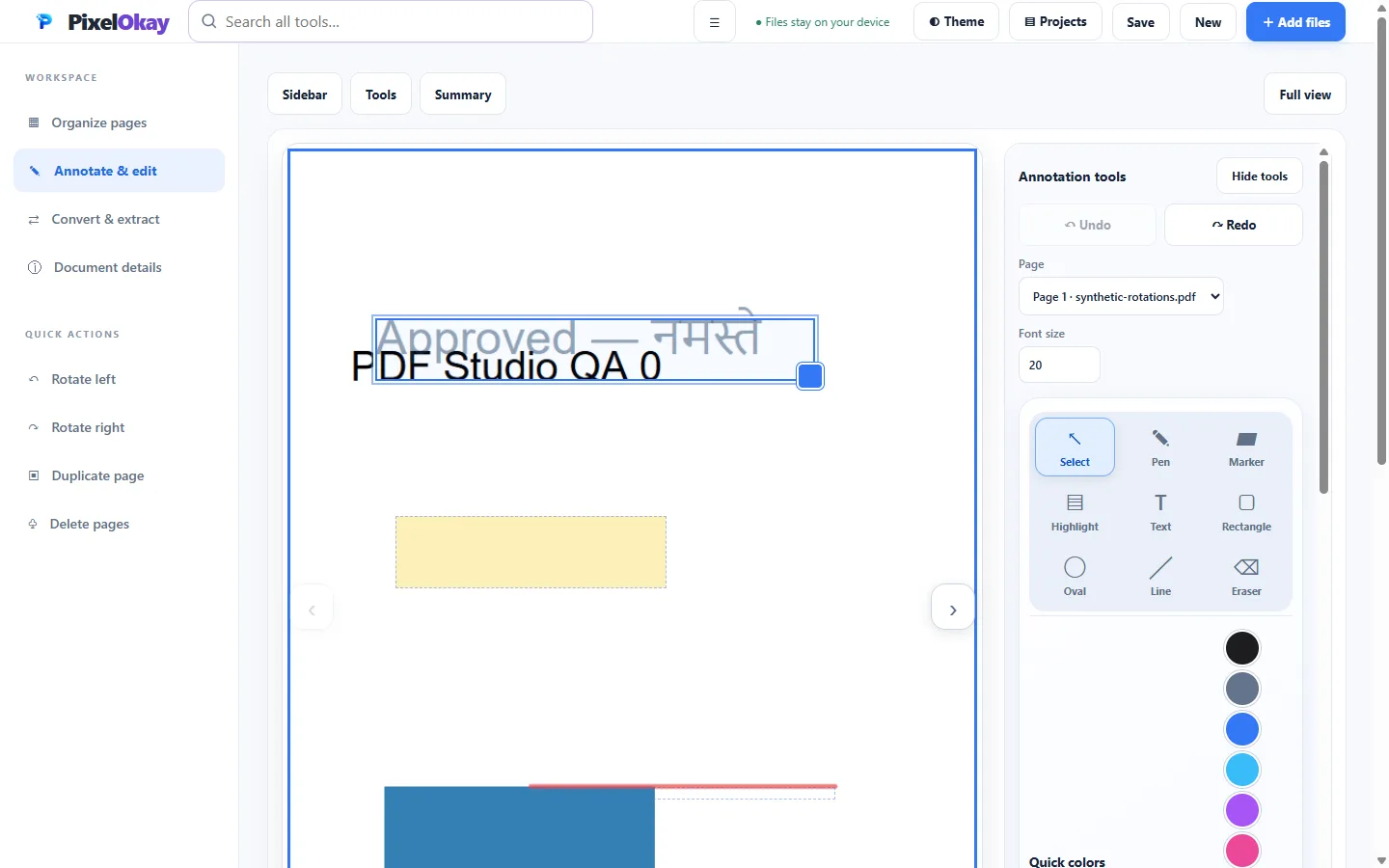
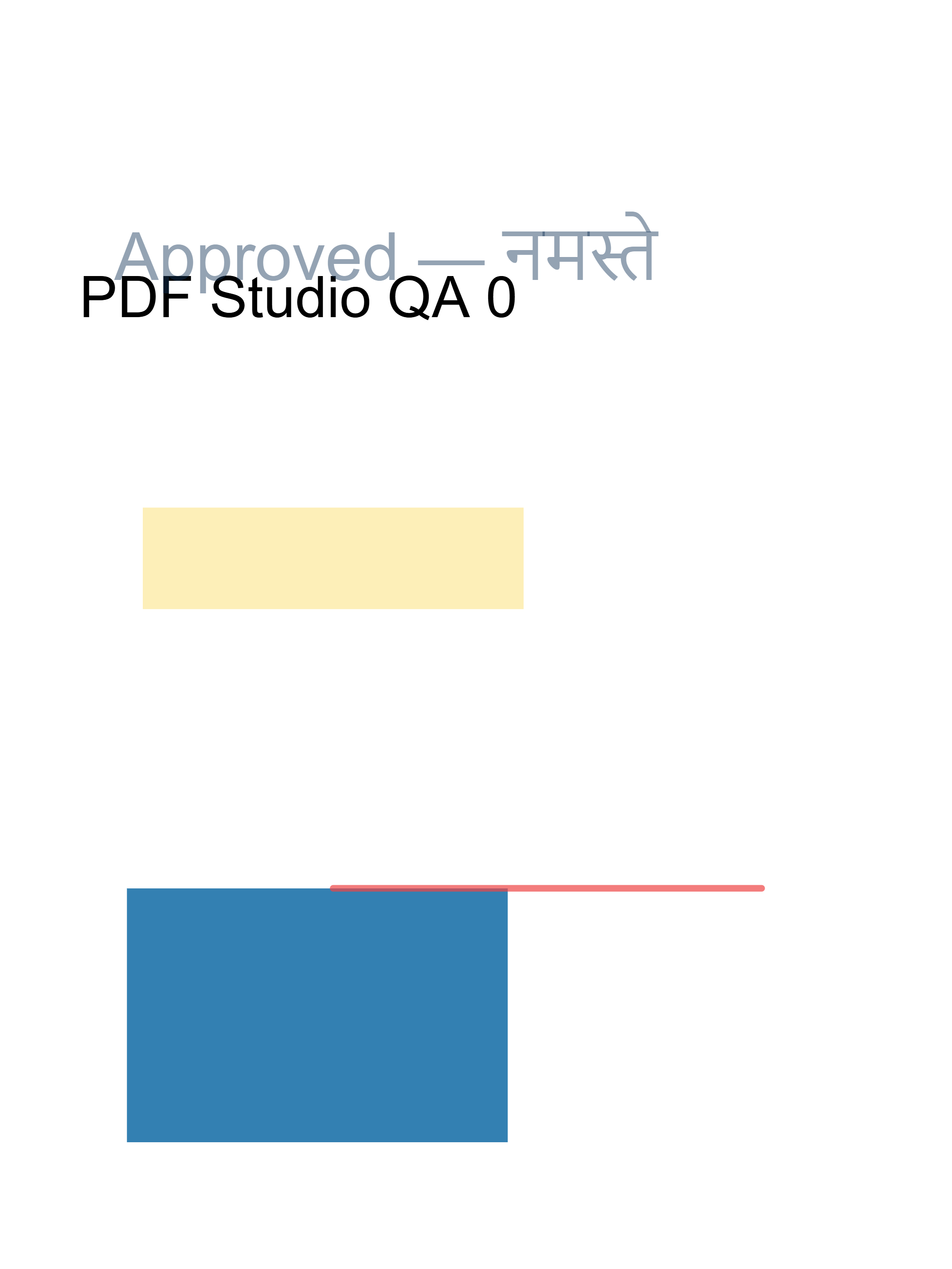
This original four-page fixture starts with text, a blue rectangle, crop boxes and different intrinsic rotations. In the earlier local PDF Studio workflow, each page received a text annotation, a yellow highlight and a red line. The stored example uses text size setting 20 and annotation opacity 0.45; these are recorded example settings, not a guarantee of identical rendering on every device.
| File | Purpose | Important boundary |
|---|---|---|
| Annotated PDF | Share a marked document. | Original text remains beneath the annotation image layer. Covering is not secure redaction. |
| Page PNG | Share a visual page preview. | It is a picture, not editable document text. |
| Workspace ZIP | Reopen the supported workspace and marks. | It contains complete source files, including material not included in selected-page exports. |
The ZIP is the genuine earlier backup, not a reconstructed project. Back up your current workspace before importing an example that replaces it. Historical source integrity and export records exist for this synthetic case; no fresh browser run, advanced-document preservation, OCR output or production availability is certified here. Current runtime remains UNVERIFIED.
Covering text is not secure redaction. The original text or image can remain in the PDF beneath an annotation. A visual rectangle, highlight or new text box is not a verified removal of sensitive content. Use a separately verified redaction workflow when information must be removed.
Text extraction reads the source PDF's text layer. It does not turn a drawn annotation into native editable PDF text. PDF export adds the visible annotation image layer; interactive forms, existing signatures, links and other advanced document features need their own output checks.
Document rendering and page/annotation processing run in this browser. The PDF viewer, its worker and the PDF writing library load from third-party CDNs. ZIP backup code loads when needed. These requests contact the library hosts; this is not a guarantee that the application is available fully offline.
Optional OCR loads Tesseract code, worker/runtime data and language models. English and Hindi options are present in the interface. Recognized text appears in the OCR panel and can be downloaded as TXT; the current PDF export does not add an OCR text layer. Check recognized words, numbers and reading order before using them.
Local projects depend on browser storage, which can be cleared, evicted or denied. A portable ZIP includes complete source PDFs and the editable workspace, potentially including content omitted from a selected-page export. Keep such backups separate from documents intended for sharing.
Check that the file is supported, readable and within the source and decoded-image bounds. Encrypted, malformed or unusually complex documents may fail. When the engine cannot load, check the library-download message; importing a different file does not fix a missing dependency.
Annotations change the visible result without deleting the original text layer. This is expected for this annotation workflow and is why covering text must not be treated as secure redaction.
Browser storage is separate from a downloaded backup and can be unavailable or cleared. Retain originals and export a workspace ZIP. If source recovery is requested, relink the exact original PDFs and inspect the workspace before saving or exporting again.